For cross-platform usage, see the universal TextInput — it renders the appropriate native component per platform.
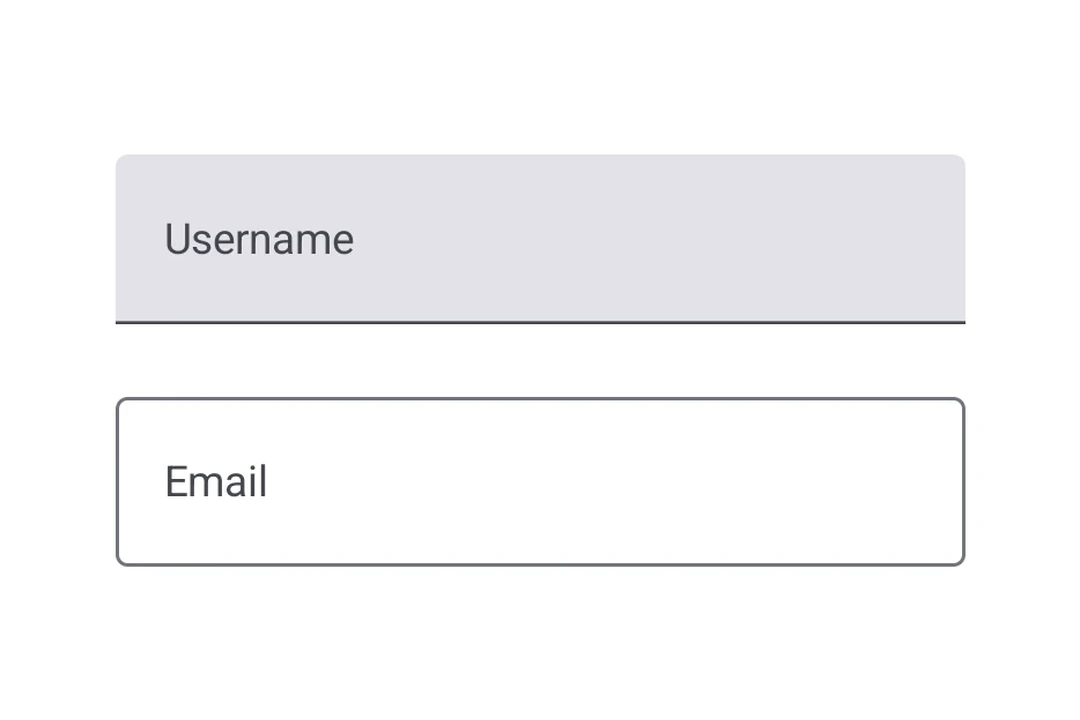
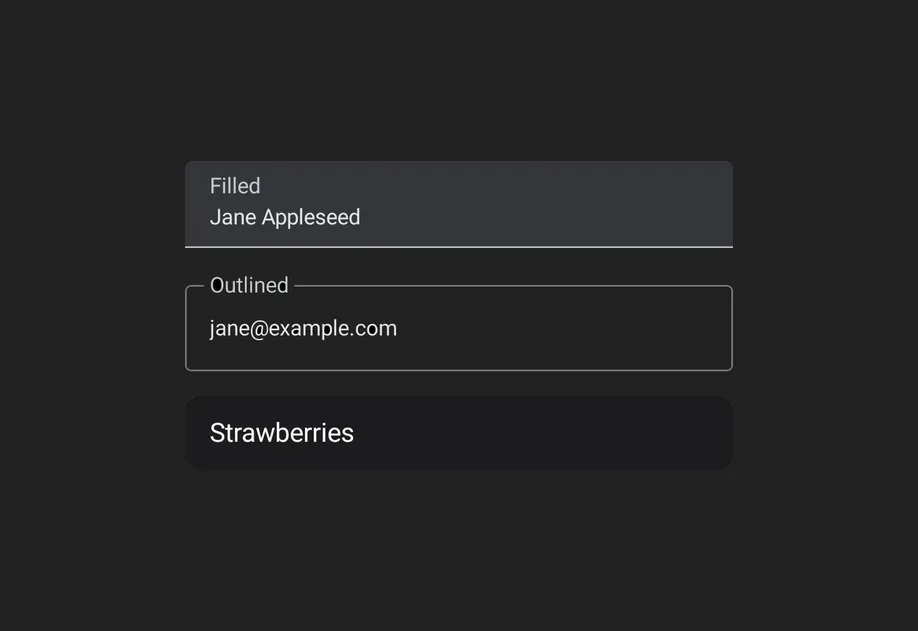
Expo UI provides three text field components that match the official Jetpack Compose TextField API: TextField (filled), OutlinedTextField (outlined border), and BasicTextField (unstyled). The Material variants TextField and OutlinedTextField share the same props and support composable slot children for label, placeholder, icons, prefix, suffix, and supporting text. BasicTextField has no Material chrome, so you supply your own decoration.
Type
Appearance
Purpose
Filled
Solid background with a bottom indicator line.
Default text input style following Material3 design. Use for most forms and input fields.
Outlined
Transparent background with a border outline.
Alternative style that provides a distinct visual boundary. Use when filled fields blend into the background.
Basic
No container, indicator, or padding. Just the editable text.
Fully custom-styled inputs. Style it yourself and add decoration through DecorationBox.
Bind a useNativeState observable to value. The field tracks the user's input on its own, and you read the current value from text.value. The filled style shown here is the default Material3 text input.
UncontrolledTextFieldExample.tsx
import{Host,TextField,Text, useNativeState }from'@expo/ui/jetpack-compose';exportdefaultfunctionUncontrolledTextFieldExample(){const text =useNativeState('');return(<HostmatchContents><TextFieldvalue={text}><TextField.Label><Text>Username</Text></TextField.Label></TextField></Host>);}
Controlled text field
Pass a useNativeState observable as value and an onValueChange worklet to transform or validate input before writing it back. The example below uppercases the text as it is typed.
Use OutlinedTextField for a text field with a border outline instead of a filled background.
OutlinedTextFieldExample.tsx
import{Host,OutlinedTextField,Text, useNativeState }from'@expo/ui/jetpack-compose';exportdefaultfunctionOutlinedTextFieldExample(){const text =useNativeState('');return(<HostmatchContents><OutlinedTextFieldvalue={text}><OutlinedTextField.Label><Text>Email</Text></OutlinedTextField.Label><OutlinedTextField.Placeholder><Text>you@example.com</Text></OutlinedTextField.Placeholder></OutlinedTextField></Host>);}
Basic text field
BasicTextField is the unstyled Compose primitive, with no container, indicator, or padding. Style it yourself with modifiers and supply decoration through DecorationBox, placing InnerTextField where the editable text should render. Wrap placeholder content in Placeholder to have it shown only while the field is empty, toggled natively from the field's text.
BasicTextFieldExample.tsx
import{Host,BasicTextField,Box,Text, useNativeState }from'@expo/ui/jetpack-compose';import{
background,
clip,
fillMaxWidth,
padding,Shapes,}from'@expo/ui/jetpack-compose/modifiers';exportdefaultfunctionBasicTextFieldExample(){const value =useNativeState('');return(<HostmatchContents><BasicTextFieldcursorColor="#7c3aed"value={value}modifiers={[fillMaxWidth(),clip(Shapes.RoundedCorner(12)),background('#f3f4f6'),padding(12,10,12,10),]}><BasicTextField.DecorationBox><Box><BasicTextField.Placeholder><Textcolor="#9ca3af">Search…</Text></BasicTextField.Placeholder><BasicTextField.InnerTextField/></Box></BasicTextField.DecorationBox></BasicTextField></Host>);}
Slots
Both TextField and OutlinedTextField support 7 composable slots that match the Compose API: Label, Placeholder, LeadingIcon, TrailingIcon, Prefix, Suffix, and SupportingText.
TextFieldSlotsExample.tsx
import{Host,TextField,Text, useNativeState }from'@expo/ui/jetpack-compose';exportdefaultfunctionTextFieldSlotsExample(){const text =useNativeState('');return(<HostmatchContents><TextFieldvalue={text}><TextField.Label><Text>Price</Text></TextField.Label><TextField.Placeholder><Text>0.00</Text></TextField.Placeholder><TextField.LeadingIcon><Text>💰</Text></TextField.LeadingIcon><TextField.Prefix><Text>$</Text></TextField.Prefix><TextField.Suffix><Text>USD</Text></TextField.Suffix><TextField.SupportingText><Text>Enter the amount</Text></TextField.SupportingText></TextField></Host>);}
Keyboard options
Use the keyboardOptions prop to configure the keyboard type, capitalization, auto-correct, and IME action.
KeyboardOptionsExample.tsx
import{Host,TextField,Text, useNativeState }from'@expo/ui/jetpack-compose';exportdefaultfunctionKeyboardOptionsExample(){const text =useNativeState('');return(<HostmatchContents><TextFieldvalue={text}singleLinekeyboardOptions={{
keyboardType:'email',
capitalization:'none',
autoCorrectEnabled:false,
imeAction:'done',}}><TextField.Label><Text>Email</Text></TextField.Label></TextField></Host>);}
Keyboard actions
Use the keyboardActions prop to handle IME action button presses. The triggered callback depends on the imeAction set in keyboardOptions. Each callback receives the current text value.
KeyboardActionsExample.tsx
import{Host,TextField,Text, useNativeState }from'@expo/ui/jetpack-compose';exportdefaultfunctionKeyboardActionsExample(){const text =useNativeState('');return(<HostmatchContents><TextFieldvalue={text}singleLinekeyboardOptions={{ imeAction:'search'}}keyboardActions={{onSearch: value =>console.log('Searched:', value),}}><TextField.Label><Text>Search</Text></TextField.Label></TextField></Host>);}
Imperative ref
Use a ref to imperatively set text, clear the field, change the selection, or move focus.
When onValueChange is marked with the 'worklet' directive, it runs synchronously on the UI thread, so writes to useNativeState observables inside the callback take effect before the next frame. There is no flicker between the typed text and the masked text. The example below masks a phone number as the user types and writes both value and selection from the worklet to keep the cursor at the end of the formatted value.
A bare, unstyled Compose BasicTextField with no Material decoration.
Props for BasicTextField. Mirrors Compose's BasicTextField: a bare,
unstyled text field with no Material chrome (no container, indicator, or
built-in padding). Shares CommonTextFieldProperties with TextField and
OutlinedTextField; use BasicTextField.DecorationBox to add your own
decoration.
Color of the text cursor. Maps to Compose's cursorBrush via
SolidColor(color). Defaults to the theme's primary color
(MaterialTheme.colorScheme.primary) so it stays visible in light and dark.
Shape used for the field's container outline/fill. Use the helpers from
Shape (for example, <Shape.Pill /> or <Shape.RoundedCorner cornerRadii={...} />).
Defaults to the Material OutlinedTextFieldDefaults.shape/TextFieldDefaults.shape.
Shape used for the field's container outline/fill. Use the helpers from
Shape (for example, <Shape.Pill /> or <Shape.RoundedCorner cornerRadii={...} />).
Defaults to the Material OutlinedTextFieldDefaults.shape/TextFieldDefaults.shape.
Imperative methods for BasicTextField. Identical to TextFieldRef.
CommonTextFieldProperties
Android
Props shared by every Compose text field variant — TextField,
OutlinedTextField, and BasicTextField. The Material variants add their
own decoration props (isError, shape, colors, slot children);
BasicTextField adds cursorColor.
Property
Type
Description
autoFocus(optional)
boolean
If true, the text field will be focused automatically when mounted.
Maximum number of characters allowed. Truncates natively as the user types.
maxLines(optional)
number
-
minLines(optional)
number
-
modifiers(optional)
ModifierConfig[]
-
onFocusChanged(optional)
(focused: boolean) => void
A callback triggered when the field gains or loses focus.
onSelectionChange(optional)
(selection:{
end: number,
start: number
}) => void
Called when the selection range changes.
onValueChange(optional)
(value: string) => void
Fires whenever the text value changes. If marked with the 'worklet'
directive, runs synchronously on the UI thread; otherwise delivered
asynchronously as a regular JS event. Use onSelectionChange (or read
the selection observable) to react to selection-only changes.
Observable state holding the current selection range. Create with
useNativeState({ start: 0, end: 0 }). The field writes user-driven
changes back to it, and writes from JS (or a worklet) update the
cursor/selection in the field. Use ref.setSelection(start, end) for
imperative one-shot updates.
Selection-related colors. Maps to Compose's TextSelectionColors via
LocalTextSelectionColors. handleColor controls the drag handles (and
the caret's drag handle); backgroundColor is the highlighted-text
background (typically the same tint at lower alpha so the underlying text
stays readable). Independent of cursorColor, which tints the caret line.
Text styling for the field's content. Maps to Compose's TextStyle.
value(optional)
ObservableState<string>
An observable state that holds the current text value. Create one with
useNativeState('initial text'). If omitted, the field manages its own
internal state.
visualTransformation(optional)
'password' | 'none'
Display-time text transformation. 'password' masks every character;
'none' (default) leaves the buffer as-is.
ObservableState
Android
Observable state shared between JavaScript and native views (Jetpack Compose
on Android and SwiftUI on iOS).
A single listener invoked on the native UI runtime whenever the value changes
(after iOS didSet and Android's setter). Assigning replaces the previous
listener; assign null to clear. The initial value does not fire onChange.
The callback must be a worklet so it can run synchronously on the UI thread.
Attach it inside useEffect and clear it in the cleanup so the listener
lifecycle matches the component lifecycle.
Example
const state =useNativeState(0);useEffect(()=>{
state.onChange=(value)=>{'worklet';console.log('changed to', value);};return()=>{
state.onChange=null;};},[]);
value
T
The current value.
Writes from a UI worklet are synchronous and immediately readable. Writes
from the JS thread are scheduled to the UI thread asynchronously, the new value is not readable until the update has been
applied. Prefer writing from a worklet when you need synchronous updates